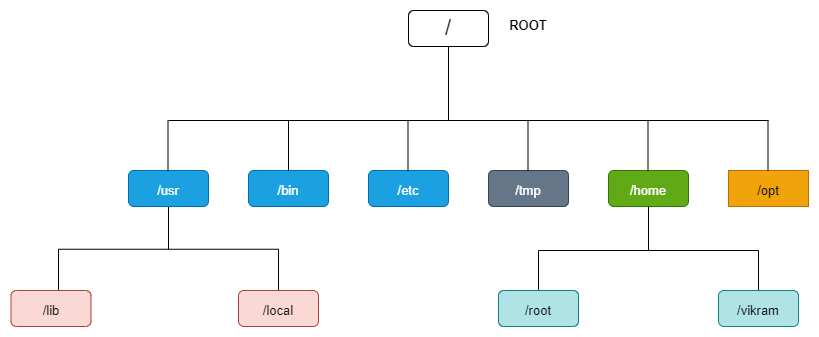
The Linux File System Hierarchy is the structure that organizes files and directories on a Linux system. It provides a standardized layout that helps users and system administrators navigate and manage the filesystem more efficiently. Here’s an overview of the Linux File System Hierarchy:
1. Root Directory (/):
-> The root directory is the top-level directory in the Linux filesystem hierarchy.
-> All other directories and files are located beneath it.
-> It contains essential system files and directories required for system operation.
2. /bin:
-> Contains essential binary files (executable programs) used by system administrators and users.
-> Common commands like ls, cp, mv, rm are stored here.
-> These binaries are required for system boot and repair.
3. /boot:
-> Contains bootloader files and kernel images required for system booting.
-> Configuration files for boot loaders like GRUB are also stored here.
4. /dev:
-> Contains device files representing hardware devices connected to the system.
-> Devices such as hard drives (/dev/sda), terminal devices (/dev/tty), and input devices (/dev/input) are represented here.
5. /etc:
-> Contains system-wide configuration files used by various programs and services.
-> Configuration files for networking, user accounts, system services, and other system settings are stored here.
6. /home:
-> Contains home directories for system users.
-> Each user has a subdirectory here where they can store personal files and configurations.
7. /lib and /lib64:
-> Contains shared libraries required by executable files in /bin and /sbin.
-> /lib contains 32-bit shared libraries, while /lib64 contains 64-bit shared libraries (on 64-bit systems).
8. /mnt and /media:
-> Used as mount points for temporarily mounting filesystems and external storage devices.
->/mnt is traditionally used for manually mounted filesystems.
->/media is used by desktop environments for automatically mounting removable media like USB drives.
9. /opt:
-> Used for installing additional software packages not provided by the Linux distribution’s package manager.
-> Software installed in /opt typically has its own directory hierarchy.
10. /proc:
-> A virtual filesystem that provides information about processes and system resources.
-> Each process has a directory named after its process ID (/proc/<pid>), containing information about the process.
11. /root:
-> The home directory for the root user (superuser).
-> Similar to user home directories in /home, but reserved for administrative tasks.
12. /sbin:
-> Contains essential system binaries (executable programs) used for system administration tasks.
-> Commands like fdisk, ifconfig, and iptables are stored here.
13. /tmp:
-> Used for storing temporary files created by system and user programs.
-> Files in /tmp are typically deleted upon system reboot.
14. /usr:
-> Contains user-related files and directories, including user binaries, libraries, documentation, and source code.
-> Subdirectories include /usr/bin, /usr/lib, /usr/include, /usr/share, and others.
15. /var:
-> Contains variable files that change frequently during system operation.
-> Log files, spool files, temporary files, and other variable data are stored here.
-> Subdirectories include /var/log, /var/spool, /var/tmp, and others.
Understanding the Linux File System Hierarchy is essential for effective system administration and troubleshooting. It provides a consistent and organized structure that helps users and administrators locate files and directories, manage system configuration, and maintain system integrity.